Step 1: Refresh or Restart the Tool (0:00)
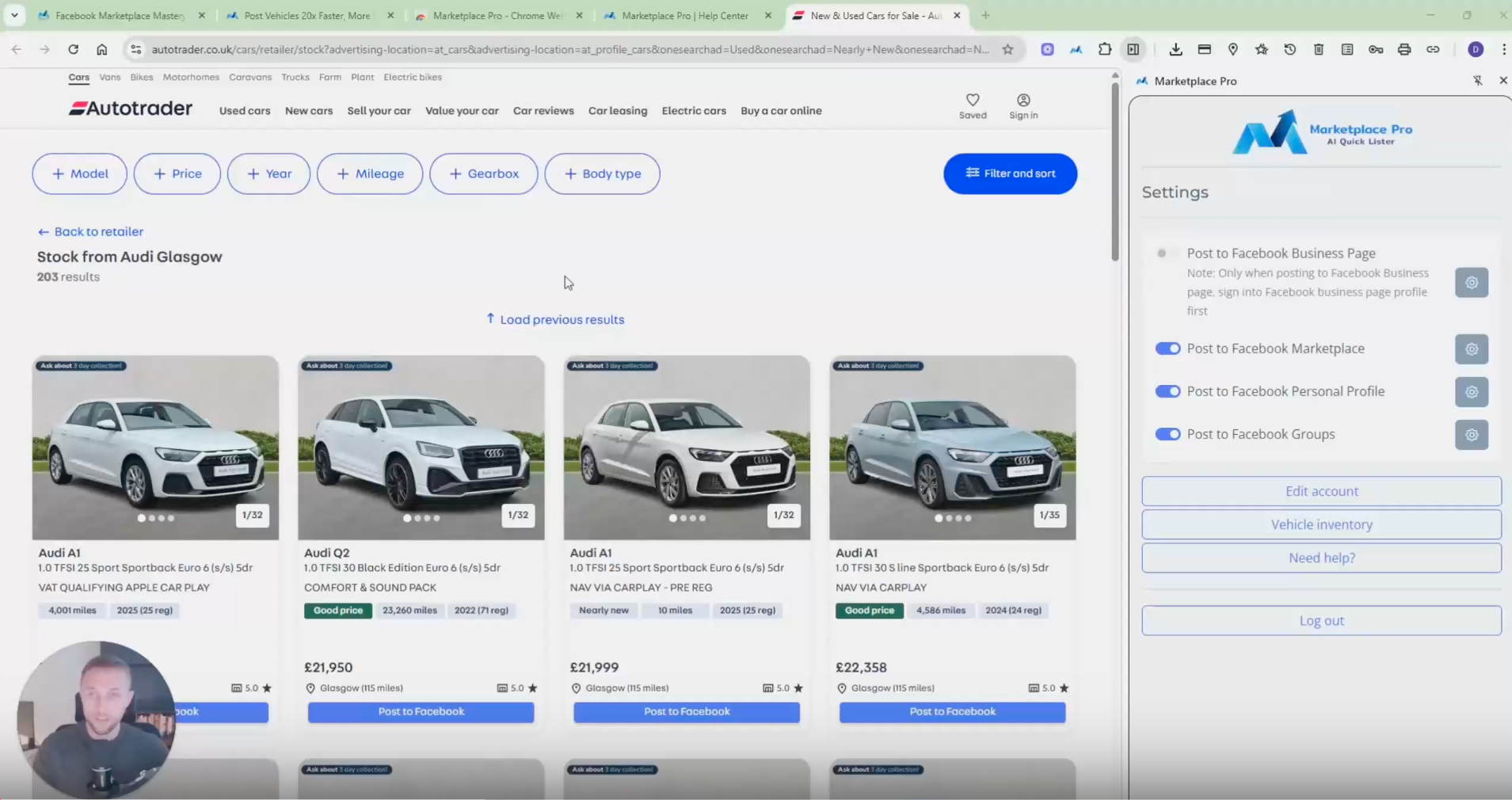 If the tool is not working correctly or is slow:
Close the tool and reopen it.
Alternatively, refresh the page.
Step 2: Delete & Reinstall extension
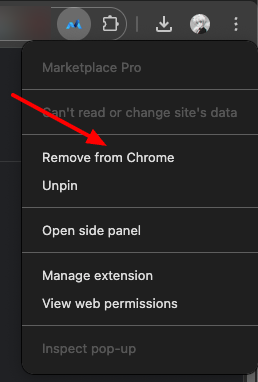
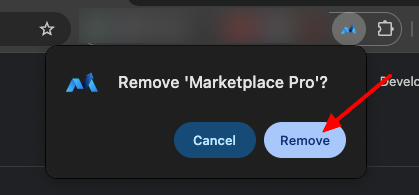
Remove extension by clicking right click and Remove from chrome
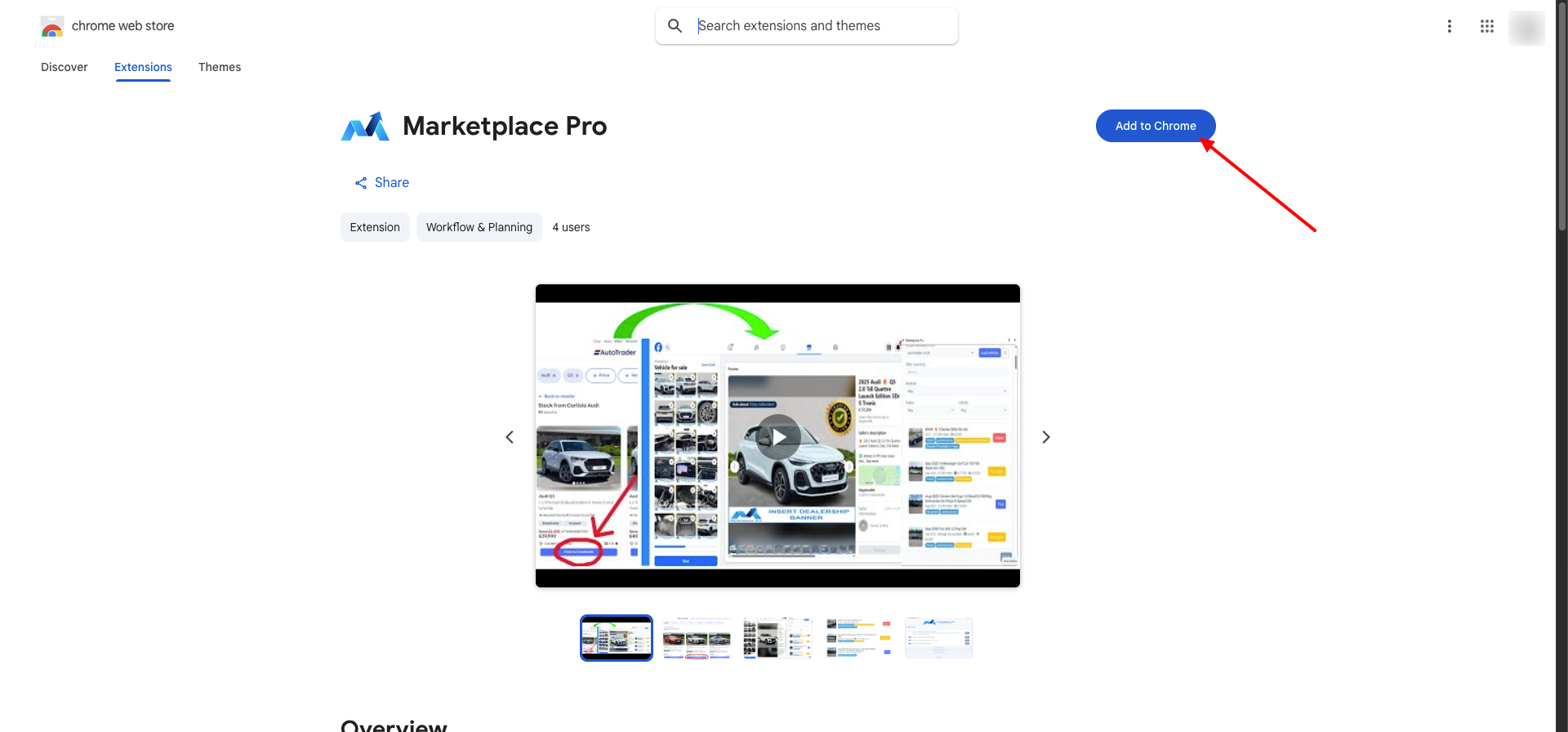
Visit Chrome store and install latest version
Step 3: Update Your Browser (0:43)
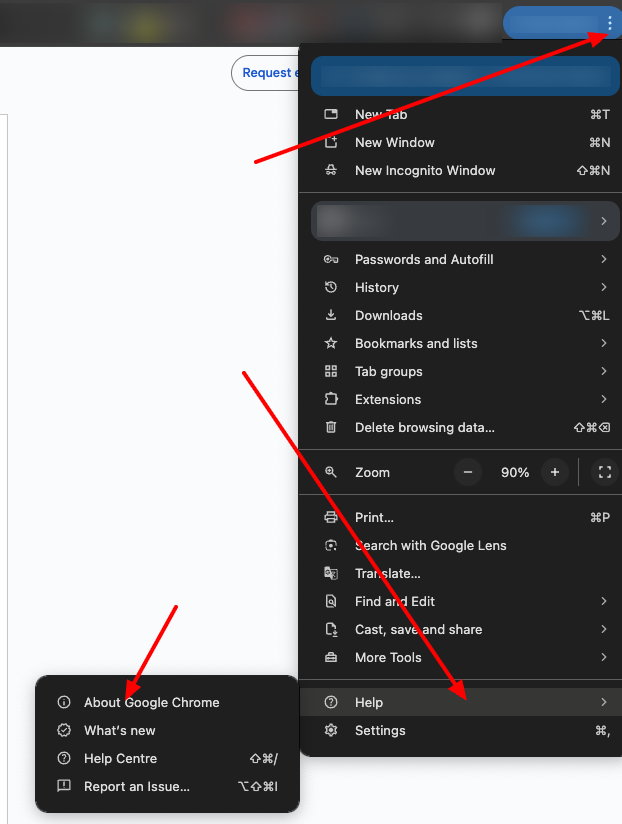
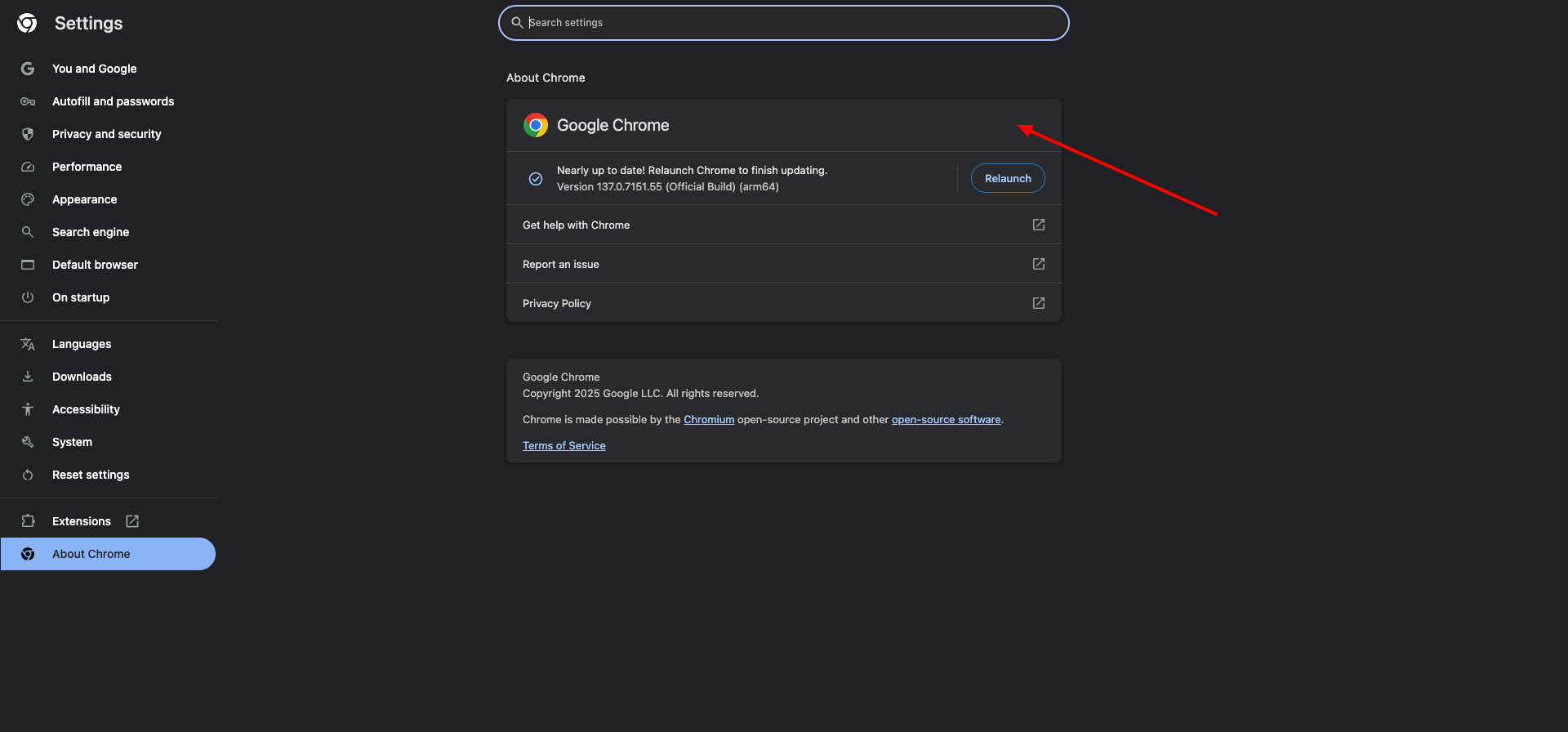
Check if your Chrome or Microsoft Edge browser needs an update:
Click on the three dots in the top right corner.
Navigate to 'Help'.
Select 'About Google Chrome' or 'About Microsoft Edge'.
If an update is available, click 'Update' or 'Relaunch'.
Step 4: Update Browser Extensions (1:08)
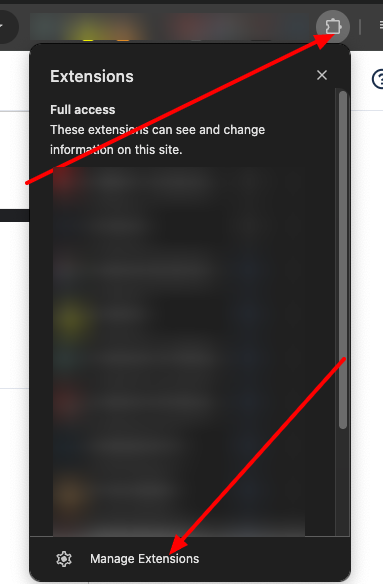
Open your extensions settings:
Go to 'Manage Extensions'.
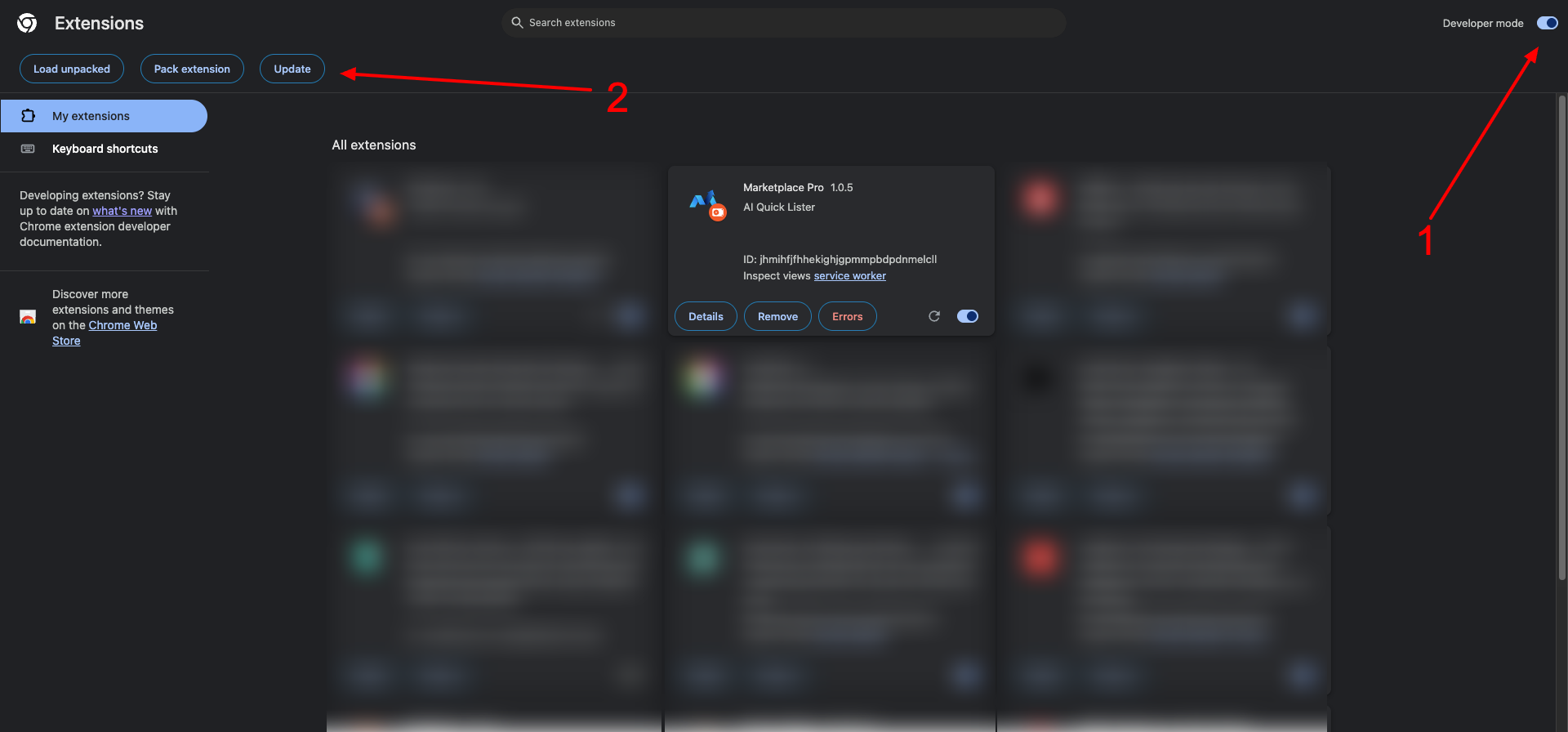
Enable 'Developer Mode'.
Click 'Update' to update all browser extensions to their latest version.
Disable 'Developer Mode' after
Step 5: Delete & Reinstall Chrome Browser (not mentioned on video)
If the above steps haven't resolved the issue, try completely reinstalling your Chrome browser:1. Uninstall Chrome from your computer2. Download the latest version of Chrome from google.com/chrome3. Install Chrome fresh4. Sign back into Chrome and reinstall the extension from the Chrome Web Store
This has been known to resolve persistent issues that other troubleshooting steps cannot fix.
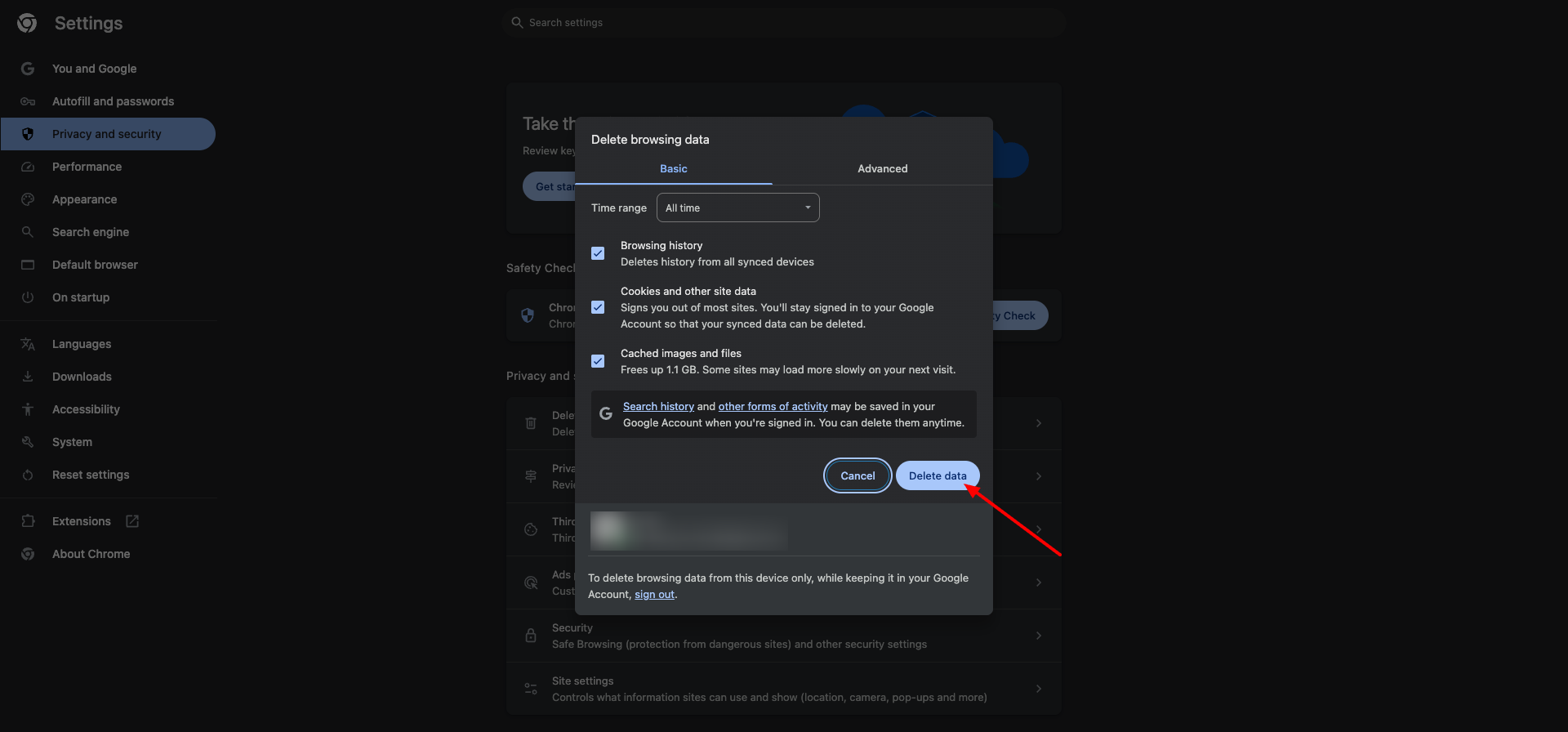
Step 6: Clear your cache and search history (not mentioned on video)
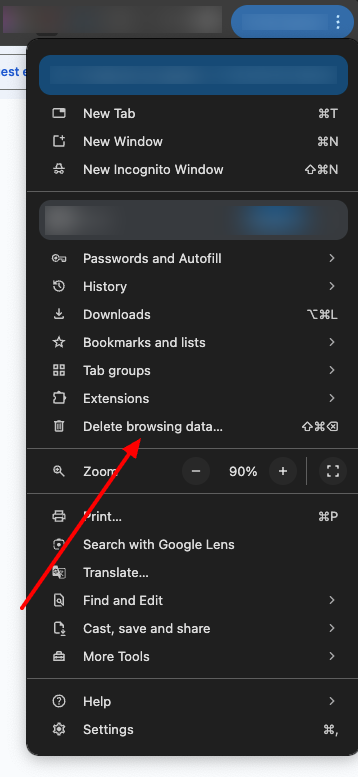
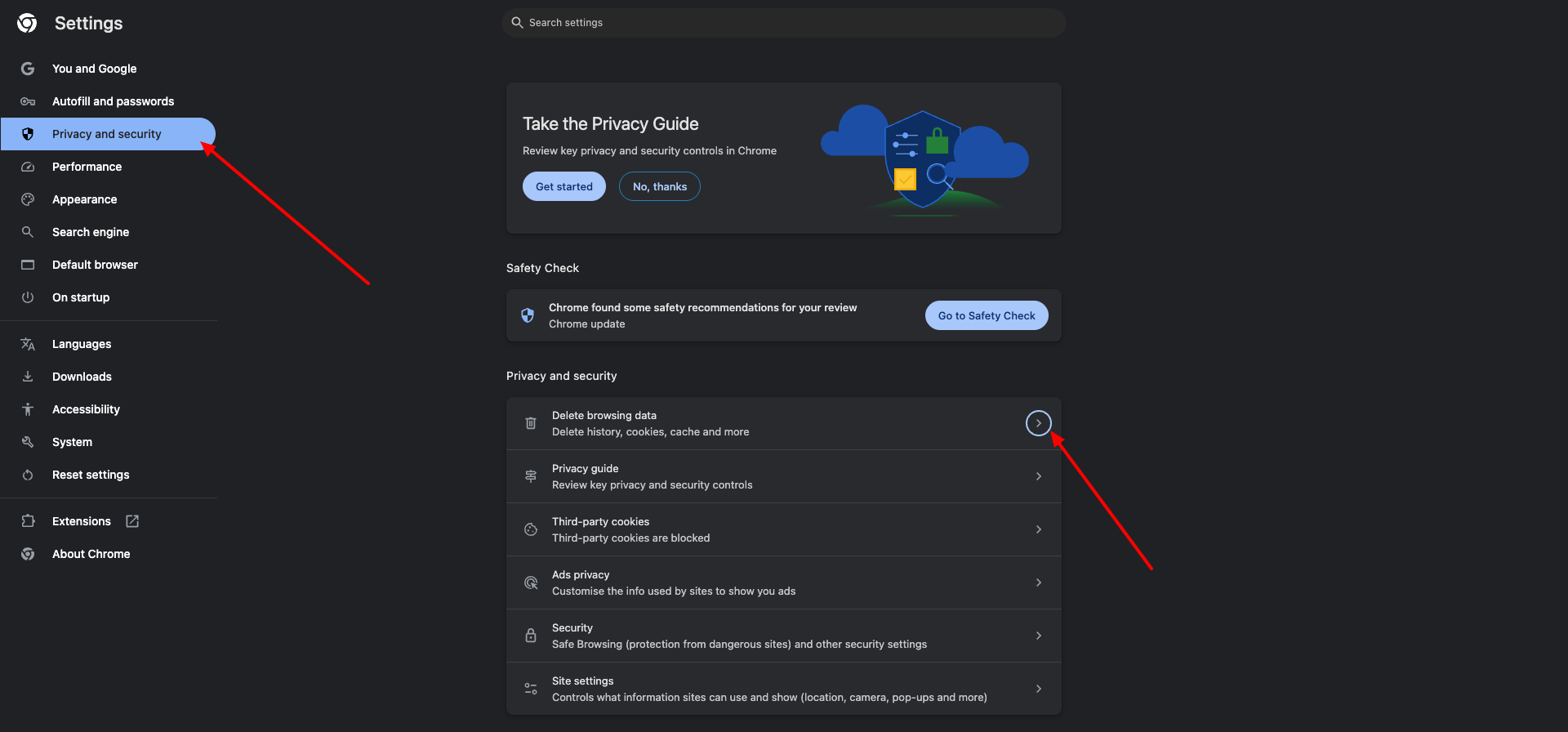
Click 3 dots top right select history
Then select history again
Select Delete browsing data
Select delete data
Step 7: Contact Support if Issues Persist (2:53)
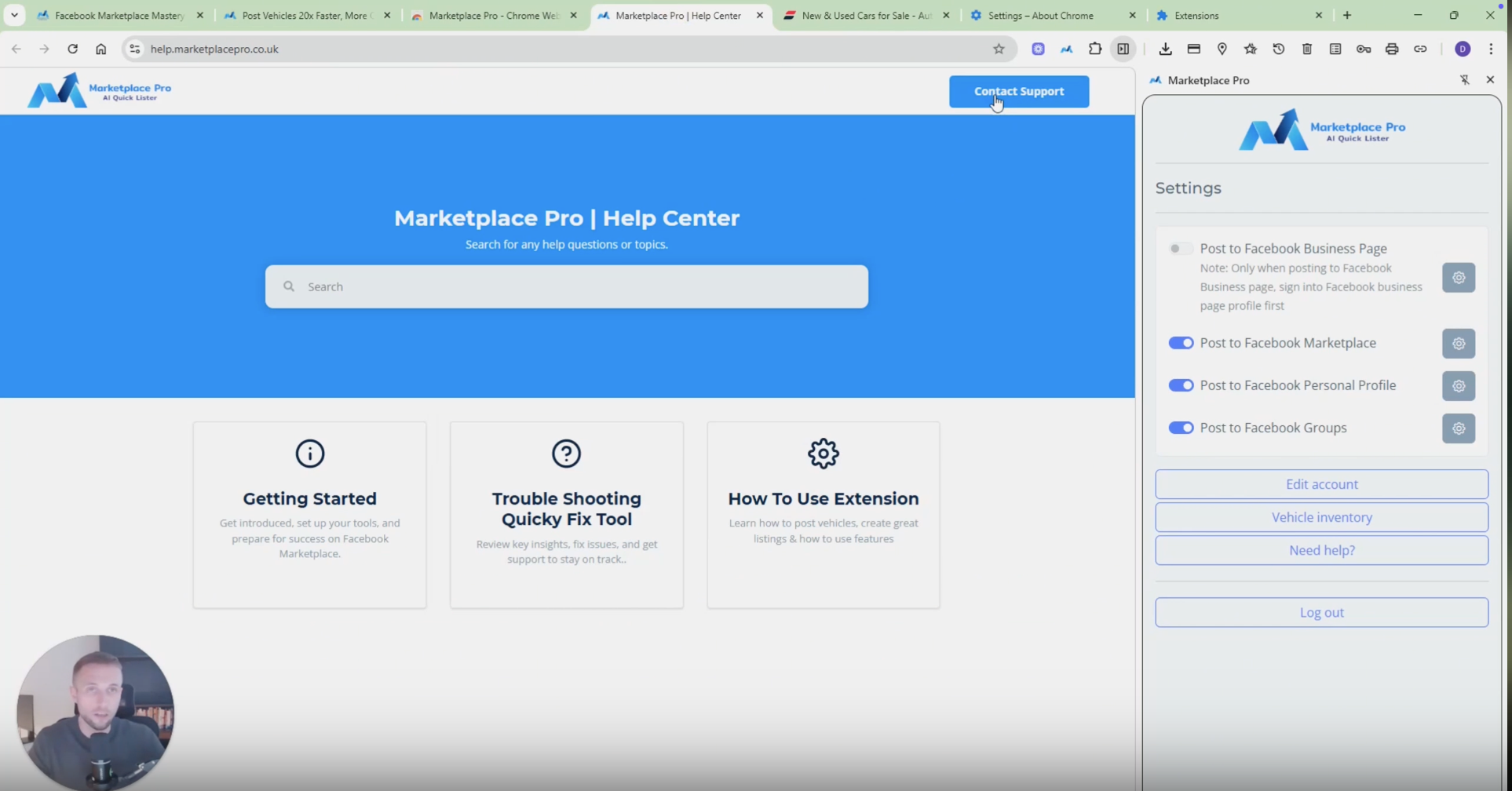
If the tool still does not work:
Click on the 'Need Help' button.
Access the help center and submit a support ticket.
Cautionary Notes
Do not attempt to use the tool on multiple browsers simultaneously as this can cause functionality issues.
Always ensure your browser and extensions are up to date to avoid compatibility problems.
Tips for Efficiency
Regularly check for browser updates to minimize troubleshooting time.
Familiarize yourself with the location of the 'Need Help' button for quick access to support.